

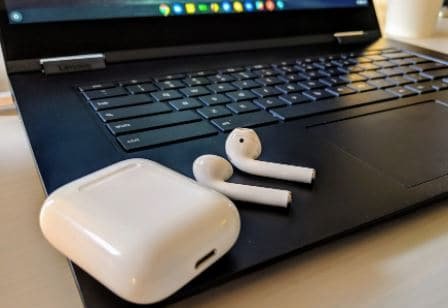
Wireless earbuds like AirPods are incredibly popular for their convenience and seamless design. If you’ve recently upgraded to a new laptop or are just getting started with AirPods, you might be wondering, how do I connect my AirPods to my laptop? Whether you’re using a Windows PC or a Mac, pairing your AirPods with your laptop is a straightforward process that can significantly enhance your audio experience. This guide covers step-by-step instructions to help you connect your AirPods effortlessly.
Step 1: Ensure Your AirPods Are Ready to Pair
Before starting the connection process, make sure your AirPods are charged and ready to pair. To do this, place your AirPods in their charging case and open the lid. If you’re pairing for the first time, your AirPods should automatically enter pairing mode. To manually put them into pairing mode, press and hold the small button on the back of the case until the LED indicator flashes white. This signals that your AirPods are in pairing mode and ready to connect.
Step 2: Enable Bluetooth on Your Laptop
For most laptops, Bluetooth needs to be enabled before you can connect wireless devices. On Windows, go to Settings » Devices » Bluetooth & other devices and toggle the Bluetooth switch to “On.” On a Mac, click the Bluetooth icon in the menu bar and ensure it is turned on. If you don’t see the Bluetooth icon, you may need to enable Bluetooth in your system preferences.
Step 3: Pair Your AirPods with Your Laptop
Once Bluetooth is enabled, follow these pairing steps:
- On Windows: Click on Add Bluetooth or other device. Select Bluetooth from the options. Your laptop will scan for nearby devices. When you see your AirPods listed (e.g., “AirPods” or a similar name), click on them to connect.
- On Mac: Your AirPods should appear automatically in the Bluetooth devices list. If they don’t appear, click Connect next to your AirPods’ name. Once connected, you’ll see the status change, indicating successful pairing.
Note: If your AirPods do not appear, make sure they are still in pairing mode and within range of your laptop. If necessary, repeat the process from step 1 to re-initiate pairing mode.
Step 4: Set AirPods as Your Default Audio Device
On Windows:
- Right-click the speaker icon in the taskbar and select Open Sound settings.
- Under Output, select your AirPods from the dropdown list.
On Mac:
- Click the Apple menu and go to System Preferences » Sound.
- Click the Output tab and select your AirPods from the list of devices.
Now, your laptop’s audio will be routed through your AirPods, giving you a wireless listening experience.
Troubleshooting Tips
If you’re struggling to connect your AirPods to your laptop, consider the following tips:
- Ensure your AirPods are charged and in pairing mode.
- Remove and re-pair the device if it doesn’t connect initially.
- Restart your laptop’s Bluetooth service or turn Bluetooth off and on again.
- Update your Bluetooth drivers or system software to ensure compatibility.
Conclusion
Connecting your AirPods to your laptop is a simple process once you go through the steps carefully. Whether you’re using Windows or macOS, understanding how to pair your devices allows you to enjoy wireless audio without hassle. For a detailed, step-by-step guide, you can visit our dedicated how do i connect my airpods to my laptop page. If you’re interested in exploring more tech tips and gadgets, don’t forget to visit the homepage of our website for the latest updates and guides.
 admin
admin